Documentation
Everything you need to know about using Hazelnut to organize your files.
Installation
macOS
The fastest way to install on macOS — uses pre-built binaries:
brew install ricardodantas/tap/hazelnutLinux
Homebrew works on Linux too, or use Cargo:
brew install ricardodantas/tap/hazelnutcargo install hazelnutWindows
Install via Cargo or download the pre-built binary:
cargo install hazelnutOr download hazelnut-*-x86_64-pc-windows-msvc.zip from GitHub Releases.
hazelnutd) is only available on macOS and Linux. On Windows, only the TUI is available.
From Source
git clone https://github.com/ricardodantas/hazelnut.git
cd hazelnut
cargo build --release
Requirements
- Rust 1.93+ (only for Cargo/source installation)
- macOS, Linux, or Windows
Quick Start
- Watch folders — which directories to monitor
- Rules — what to do with files in those folders
Get up and running in these steps:
Configure watches and rules
Edit ~/.config/hazelnut/config.toml:
# Watch your Downloads folder
[[watch]]
path = "/home/youruser/Downloads"

# Move PDFs to Documents
[[rule]]
name = "Organize PDFs"
[rule.condition]
extension = "pdf"
[rule.action]
type = "move"
destination = "/home/youruser/Documents/PDFs"
💡 Paths support ~, $VAR, and ${VAR} expansion.
Start the daemon
The daemon runs in the background, watching folders and applying rules:
hazelnutd startLaunch the TUI
Open the terminal interface to manage rules and monitor activity:
hazelnutArchitecture
Hazelnut consists of two main components:
hazelnut
The TUI (Terminal User Interface) for managing rules, viewing logs, and monitoring file organization activity.
hazelnutd
The background daemon that watches folders and applies rules in real-time. Communicates with the TUI via Unix socket.
Daemon Commands
The hazelnutd daemon runs in the background and processes file events 24/7.
| Command | Description |
|---|---|
hazelnutd start | Start daemon in background, detached from terminal |
hazelnutd stop | Gracefully stop the daemon |
hazelnutd restart | Stop and start the daemon |
hazelnutd status | Show running state, PID, uptime, and log location |
hazelnutd reload | Hot-reload configuration without restarting |
hazelnutd run | Run in foreground with live logging (for debugging) |
Status Output
$ hazelnutd status
🌰 Hazelnut daemon is running
   PID: 12345
   PID file: ~/.local/state/hazelnut/hazelnutd.pid
   Log file: ~/.local/state/hazelnut/hazelnutd.log
   Uptime: 2h 15m 30s
File Locations
All files use consistent paths across Linux and macOS.
| File | Path | Purpose |
|---|---|---|
| Config | ~/.config/hazelnut/config.toml | Rules and watch configuration |
| PID file | ~/.local/state/hazelnut/hazelnutd.pid | Tracks running daemon process |
| Log file | ~/.local/state/hazelnut/hazelnutd.log | Daemon activity log |
hazelnutd reload to apply changes without restarting the daemon!
Config File
Hazelnut uses TOML for configuration. The config file is always located at:
~/.config/hazelnut/config.tomlHere's a complete example configuration:
[general]
log_level = "info"
log_file = "~/.local/share/hazelnut/hazelnut.log"
debounce_seconds = 2

# Watch folders
[[watch]]
path = "~/Downloads"
recursive = false

[[watch]]
path = "~/Desktop"
recursive = false

# Rules
[[rule]]
name = "Move PDFs"
enabled = true

[rule.condition]
extension = "pdf"

[rule.action]
type = "move"
destination = "~/Documents/PDFs"
General Settings
| Setting | Type | Default | Description |
|---|---|---|---|
log_level | string | "info" | Logging level (trace, debug, info, warn, error) |
log_file | string | none | Path to log file |
debounce_seconds | int | 2 | Wait time before processing a file |
polling_interval_secs | int | 5 | How often to check for file changes |
log_retention | int | 500 | Maximum activity log entries to keep |
start_daemon_on_launch | bool | false | Auto-start daemon when TUI opens |
notifications_enabled | bool | false | Desktop notifications on errors |
notifications_enabled to get alerted when something goes wrong (watch errors, rule failures, command errors). Works on Linux, macOS, and Windows.
Watch Folders
Configure which directories Hazelnut monitors for changes:
[[watch]]
path = "/home/user/Downloads"  # Use full paths
recursive = false
rules = [] # Empty = all rules apply| Field | Type | Default | Description |
|---|---|---|---|
path | string | required | Directory to watch (use full paths, ~ not expanded) |
recursive | bool | false | Watch subdirectories |
rules | array | [] | Rule names to apply (empty = all) |
Watch Editor Keybindings
| Key | Action |
|---|---|
| a / n | Add new watch folder |
| e | Edit selected watch |
| d | Delete selected watch |
Conditions
All conditions must match for a rule to apply. Omit conditions you don't need.
File Name
[rule.condition]
name_matches = "Screenshot*.png"  # Glob pattern
name_regex = "^invoice_\\d+\\.pdf$"  # Regex pattern
File Type
[rule.condition]
extension = "pdf"  # Single extension
extensions = ["jpg", "jpeg", "png", "gif"]  # Multiple
is_directory = false
is_hidden = true  # Files starting with .
File Size
[rule.condition]
size_greater_than = 10485760  # > 10 MB (in bytes)
size_less_than = 1048576  # < 1 MB
File Age
[rule.condition]
age_days_greater_than = 30  # Older than 30 days
age_days_less_than = 7  # Newer than 7 days
Actions
Move
[rule.action]
type = "move"
destination = "~/Documents/Archive/{date:%Y%m%d}"
create_destination = true  # Create folder if missing
overwrite = false  # Don't overwrite existing files
Works across filesystems — automatically falls back to copy + delete when needed. Supports both files and directories.
Copy
[rule.action]
type = "copy"
destination = "~/Backup/{ext}/{name}"
create_destination = true
overwrite = false
Move and copy templates expand the destination directory only. Hazelnut preserves the original filename inside the expanded directory.
Rename
[rule.action]
type = "rename"
pattern = "{date}_{name}.{ext}"
Available destination and rename template variables:
{name}- Filename without extension{filename}- Full filename{ext}- Extension (empty string if none){path}- Full path{dir}- Parent directory{date}- Current date (YYYY-MM-DD){datetime}- Current datetime{date:FORMAT}- Custom date format
Trash / Delete
[rule.action]
type = "trash"  # Safe, recoverable (uses native OS trash)

# Or permanently delete (⚠️ dangerous!)
type = "delete"
Run Command
[rule.action]
type = "run"
command = "convert"
args = ["{path}", "-resize", "50%", "{dir}/{name}_small.{ext}"]
Pattern variables are automatically shell-escaped for security. Commands have a 60-second timeout.
Archive
[rule.action]
type = "archive"
destination = "~/Archives"
delete_original = false
Supports both files and directories (directories are recursively archived).
Examples
Organize Screenshots
[[rule]]
name = "Screenshots"

[rule.condition]
name_matches = "Screenshot*.png"

[rule.action]
type = "move"
destination = "~/Pictures/Screenshots"
Clean Old Downloads
[[rule]]
name = "Clean old downloads"

[rule.condition]
age_days_greater_than = 30
extensions = ["tmp", "log", "bak"]

[rule.action]
type = "trash"
Sort Media Files
[[rule]]
name = "Sort Images"

[rule.condition]
extensions = ["jpg", "jpeg", "png", "gif", "webp"]

[rule.action]
type = "move"
destination = "~/Pictures/Unsorted"

[[rule]]
name = "Sort Videos"

[rule.condition]
extensions = ["mp4", "mov", "avi", "mkv"]

[rule.action]
type = "move"
destination = "~/Videos/Unsorted"
Date-Prefix Invoices
[[rule]]
name = "Date prefix invoices"

[rule.condition]
name_matches = "invoice*.pdf"

[rule.action]
type = "rename"
pattern = "{date:%Y-%m-%d}_{name}.{ext}"
TUI Overview
The TUI provides a beautiful interface for managing Hazelnut. Launch it with:
hazelnut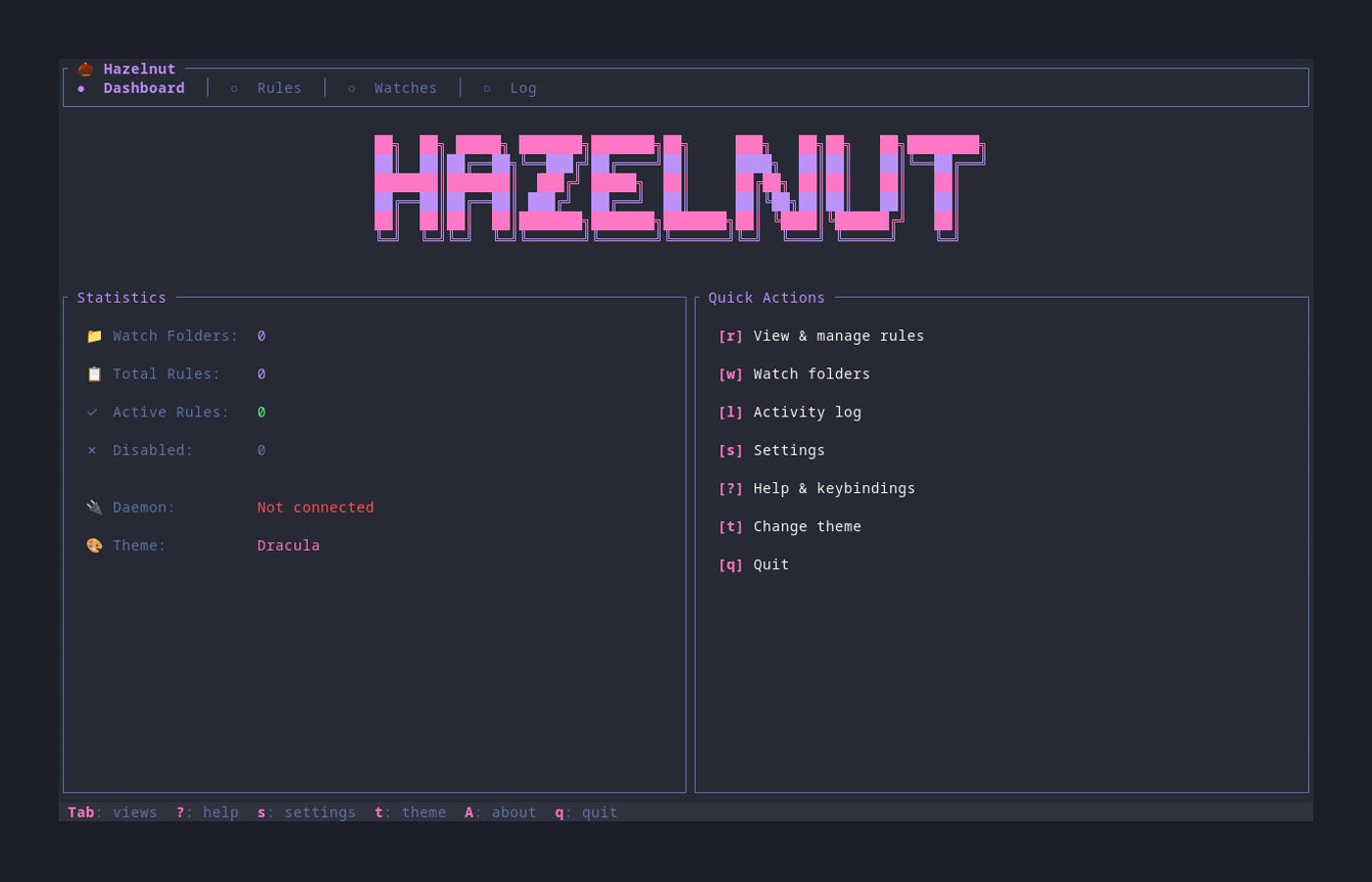
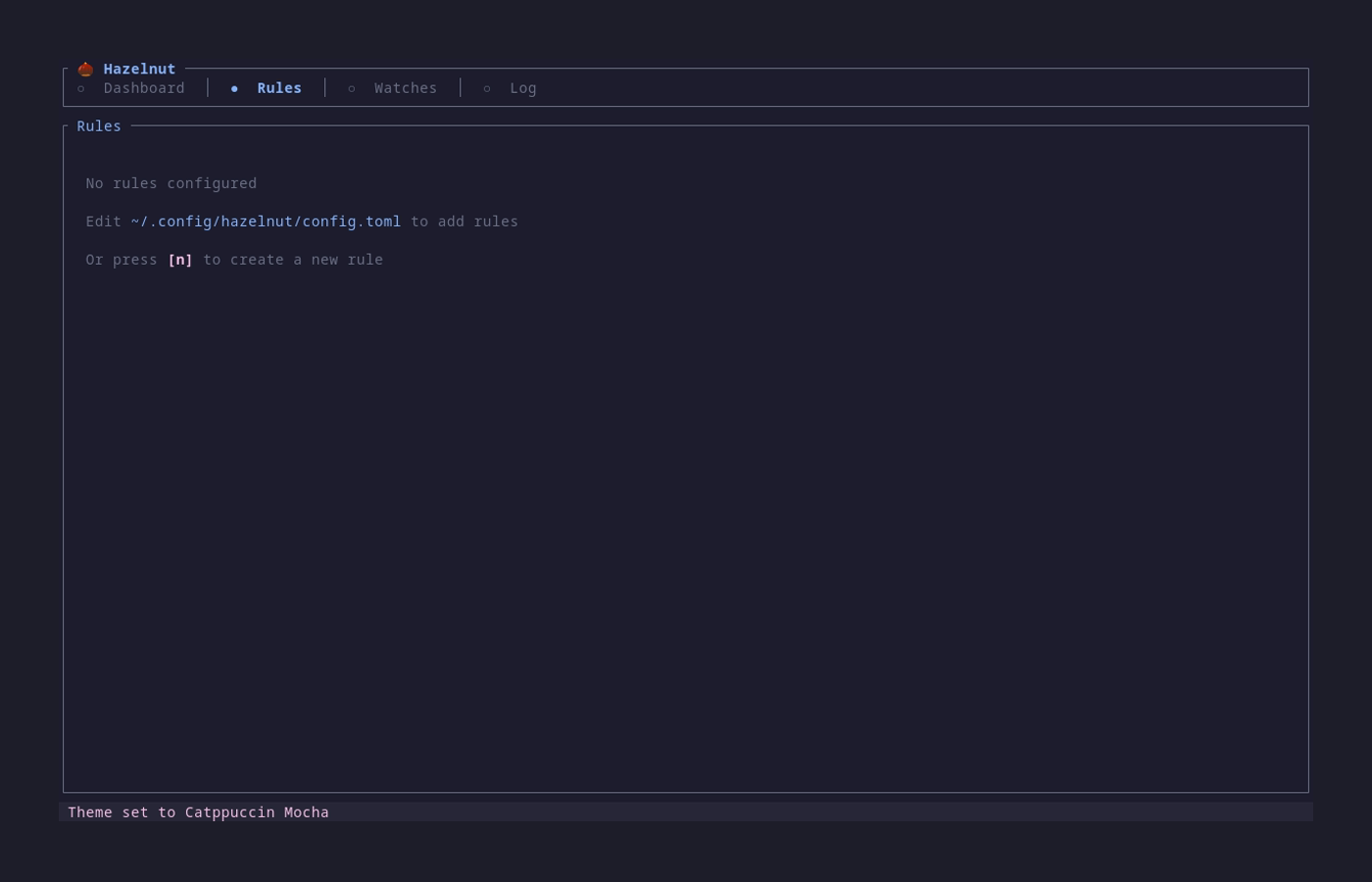
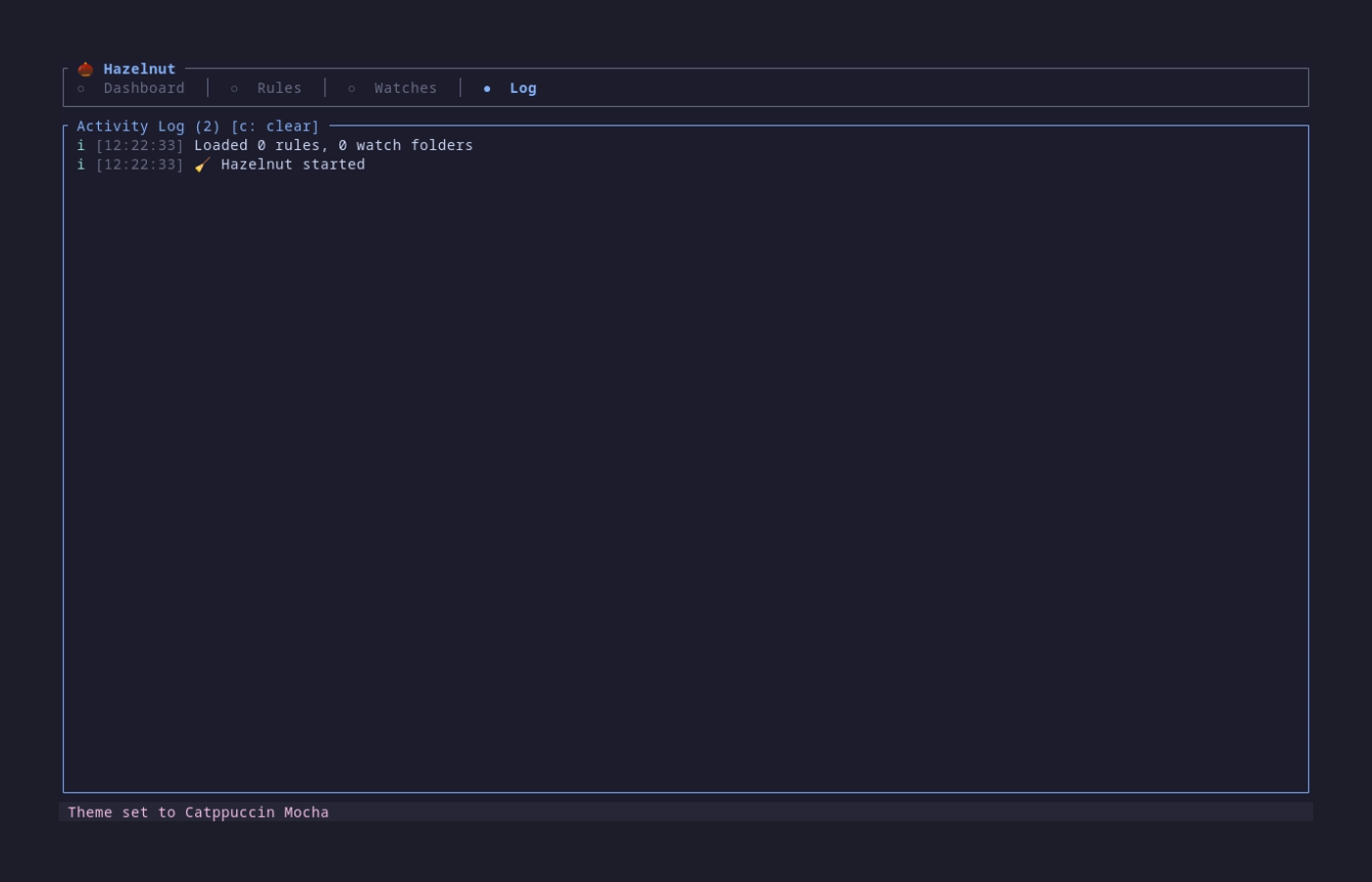
Keyboard Shortcuts
Navigation
| Key | Action |
|---|---|
| ? | Show help |
| q | Quit |
| 1-4 | Switch tabs (Dashboard, Rules, Watches, Log) |
| Tab | Next tab |
| j/k or ↑/↓ | Navigate list |
| g/G | Go to first/last item |
Rules View
| Key | Action |
|---|---|
| n | Create new rule |
| e | Edit selected rule |
| d | Delete selected rule |
| Enter / Space | Toggle rule enabled/disabled |
General
| Key | Action |
|---|---|
| t | Open theme picker |
| s | Open settings |
| A | About dialog |
Watches View
| Key | Action |
|---|---|
| a / n | Add new watch |
| e | Edit selected watch |
| d | Delete selected watch |
Rule Editor / Watch Editor
| Key | Action |
|---|---|
| Tab | Next field |
| Shift+Tab | Previous field |
| Enter | Save |
| Esc | Cancel |